
Contents
Bluetooth connectivity issues on iPhones can be frustrating, especially when they disrupt the seamless experience users expect from their devices. Common problems include difficulty pairing with accessories, intermittent disconnections, and poor audio quality. These issues can stem from a variety of factors, including software glitches, hardware limitations, or interference from other devices. Understanding the root causes and knowing how to address them can significantly enhance the user experience.
Bluetooth technology operates on specific protocols and standards that govern how devices communicate. When these standards are not adhered to, or when device settings are misconfigured, users may encounter connectivity problems. For instance, an outdated iOS version may lack compatibility with newer Bluetooth accessories, leading to pairing failures. This guide will delve into the most common Bluetooth issues faced by iPhone users and provide actionable solutions to resolve them quickly.
Many users overlook the importance of regular software updates, which can resolve known bugs and improve overall performance. Additionally, understanding the nuances of Bluetooth settings can make a significant difference. For example, ensuring that Bluetooth is enabled and that the device is discoverable are basic yet crucial steps often neglected. This guide will equip users with the knowledge to troubleshoot effectively and maintain a stable Bluetooth connection.
By addressing these common issues systematically, users can restore functionality to their Bluetooth accessories, whether they are headphones, speakers, or smartwatches. This guide aims to provide a comprehensive overview of troubleshooting steps, technical insights, and practical tips for achieving optimal Bluetooth performance on iPhones.
How to Implement Bluetooth Troubleshooting for Real Results
- Best Tool: iPhone Settings
- Optimal Configuration: Ensure Bluetooth is enabled and devices are in pairing mode
- Expected Outcome: Successful pairing and stable connection
Understanding Bluetooth Settings
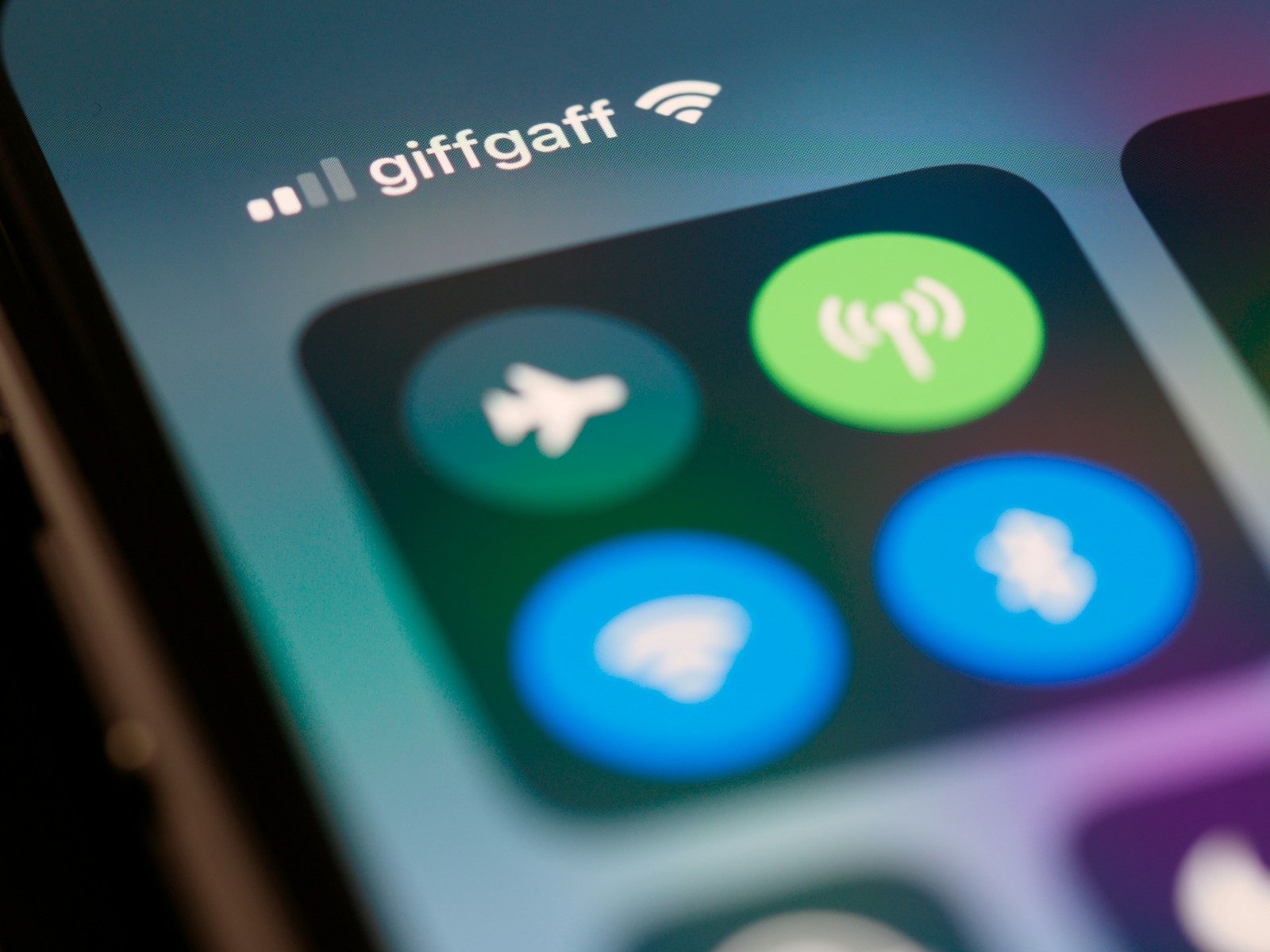
Accessing the Bluetooth settings on an iPhone is the first step in troubleshooting connectivity issues. Navigate to Settings, then Bluetooth, and ensure that the Bluetooth toggle is switched on. If the device you are trying to connect to is not visible, it may not be in pairing mode. Many accessories have a specific button or sequence to initiate pairing, which must be followed precisely. Failure to do so can lead to confusion and frustration.
Once you confirm that Bluetooth is enabled, check for any devices that may be connected. If multiple devices are connected, it can cause interference, leading to connectivity problems. Disconnect any devices that are not in use. This will help in establishing a stable connection with the desired accessory. Restarting the iPhone can also refresh the Bluetooth module, which may resolve lingering issues.
Pro Tip: Regularly clear the Bluetooth cache by forgetting devices you no longer use. This can prevent potential conflicts and improve connection reliability.
Updating iOS for Compatibility
Software updates are critical for maintaining compatibility with Bluetooth devices. Apple frequently releases updates that address bugs and enhance performance. To check for updates, navigate to Settings, then General, and select Software Update. If an update is available, download and install it. This process ensures that your device has the latest features and fixes that can resolve Bluetooth issues.
Outdated software can lead to incompatibility with newer Bluetooth accessories. For instance, if a device requires a specific Bluetooth version that is not supported by the current iOS, pairing will fail. Keeping the iPhone updated minimizes the risk of such issues. Additionally, after an update, it may be necessary to re-pair devices, as the update process can reset Bluetooth connections.
Pro Tip: Enable automatic updates to ensure your device always runs the latest iOS version. This can save time and prevent connectivity issues in the future.
Resetting Network Settings
If Bluetooth issues persist despite following the previous steps, resetting the network settings may be necessary. This action will remove all saved Wi-Fi networks and Bluetooth connections, essentially restoring the network stack to its default state. To do this, navigate to Settings, then General, and select Transfer or Reset iPhone. From there, choose Reset Network Settings. After the reset, reconnect to your Bluetooth devices.
Resetting network settings can resolve deep-rooted configuration issues that may not be apparent. This method is particularly effective if the iPhone has been experiencing connectivity problems across multiple Bluetooth devices. While it may seem drastic, it often resolves persistent issues that other methods cannot. Users should be prepared to re-enter Wi-Fi passwords and reconnect to Bluetooth devices after this reset.
Pro Tip: Document your Wi-Fi passwords before resetting to avoid inconvenience when reconnecting.
Configuration Risks in Bluetooth Connectivity
Incorrect Device Pairing
One common error is attempting to pair with the wrong device. Users may accidentally select a similar device from the Bluetooth list, leading to confusion and failed connections. Ensure that the correct device is selected by checking the name and model number. If the device is not visible, it may not be in pairing mode or could be out of range.
To fix this, ensure that the accessory is powered on and within the recommended range, typically around 30 feet for most Bluetooth devices. If the device still does not appear, try turning Bluetooth off and on again on the iPhone. This refresh can help the iPhone detect the accessory. If issues persist, consult the accessory’s manual for specific pairing instructions.
Bluetooth Interference
Interference from other electronic devices can significantly impact Bluetooth performance. Common culprits include Wi-Fi routers, microwaves, and other Bluetooth devices operating in close proximity. This interference can lead to dropped connections or poor audio quality. Identifying and eliminating sources of interference is crucial for maintaining a stable connection.
To mitigate interference, try moving away from other electronic devices or turning them off temporarily. Additionally, changing the Wi-Fi channel on your router can reduce interference, as most routers operate on the 2.4 GHz frequency, which overlaps with Bluetooth. This adjustment can improve overall performance and connectivity.
Outdated Bluetooth Profiles
Bluetooth profiles define the capabilities of Bluetooth devices, and using outdated profiles can lead to compatibility issues. For instance, older Bluetooth versions may not support newer audio codecs, affecting sound quality. To resolve this, ensure that both the iPhone and the accessory support the same Bluetooth profile, such as A2DP for audio streaming.
Check the specifications of both devices to confirm compatibility. If the accessory supports a newer profile, updating the iPhone’s software may help. If issues persist, consider replacing the accessory with one that matches the iPhone’s Bluetooth capabilities.
The Bluetooth Protocol Architecture
Bluetooth technology operates on a layered architecture, which includes the radio frequency layer, baseband layer, and the link layer. Each layer plays a crucial role in establishing and maintaining connections. The radio frequency layer manages the physical connection, while the baseband layer handles data transmission. The link layer ensures that data packets are correctly formatted and transmitted.
Understanding these layers can help troubleshoot connectivity issues more effectively. For example, if a device fails to connect, it may be due to interference at the radio frequency level. Identifying this can lead to targeted solutions, such as moving away from potential sources of interference. Additionally, monitoring the link layer for errors can provide insights into data transmission issues.
For more information on Bluetooth architecture, visit Wired.
Choosing the Right Solution
- Check Compatibility: Ensure that the accessory is compatible with the iPhone’s Bluetooth version. Incompatibility can lead to pairing failures.
- Monitor Device Range: Keep devices within the recommended range to avoid connectivity issues. Most Bluetooth devices operate effectively within 30 feet.
- Regular Updates: Keep both the iPhone and accessories updated to the latest software. This minimizes compatibility issues and enhances performance.
Pros & Cons
| The Benefits | Potential Downsides |
|---|---|
| Enhanced connectivity with multiple devices | Potential for interference from other electronics |
| Wireless convenience and portability | Battery life may be affected by continuous use |
| Regular updates improve performance | Compatibility issues with older devices |
Tools for Effective Troubleshooting
Utilizing specific tools can enhance the troubleshooting process. Bluetooth diagnostic apps can provide insights into connection quality and interference levels. Additionally, hardware tools like Bluetooth analyzers can help identify signal strength and range issues. These tools can assist in pinpointing problems that may not be immediately apparent through standard troubleshooting methods.
Who Should Avoid This?
Individuals using older iPhone models may experience more significant Bluetooth issues due to hardware limitations. Additionally, users in environments with high electronic interference should be cautious when relying on Bluetooth devices. If connectivity issues are persistent, consider alternative connection methods, such as wired connections, for critical applications.
Common Questions
Why won’t my iPhone connect to my Bluetooth device?
Common reasons include the device being out of range, not in pairing mode, or software incompatibility. Ensure the device is powered on and within range before attempting to connect.
How can I improve Bluetooth audio quality?
Ensure that both the iPhone and audio device support the same Bluetooth audio profiles. Additionally, minimizing interference from other electronic devices can enhance audio quality.
What should I do if my Bluetooth keeps disconnecting?
Check for interference from other devices and ensure that both devices are updated to the latest software. If issues persist, consider resetting the network settings on the iPhone.
The Bottom Line
Bluetooth issues can disrupt the user experience but are often easily resolved with the right troubleshooting steps. Regular updates, proper configuration, and awareness of potential interference can significantly enhance connectivity.
- Keep Bluetooth settings optimized.
- Regularly update software.
- Monitor for interference and connectivity issues.